
| Category: | End-user Devices |
| Technical Level: | Everyday User |

Everyone who uses a mobile phone, tablet, or laptop is familiar with the frustration of a low battery. On multiple occasions, I have gone to use my smartphone, only to find that its power was drained. Over the years, I have learned about many ways in which battery life can be preserved or extended. Here is what I have found.
Jump to a section in this article
- Wireless communications
- External battery
- Screen activity
- Power
- Location Services
- Dark Mode
- Background activity
- Battery Health
The Obvious Things
Use Low Power Mode
Many mobile devices now have a power saving mode. On iPhone, the low power mode can currently be accessed in Settings > Battery. Turning this feature on will reduce screen brightness and pause certain background processes. Processes that are paused on iPhone include:
- Background app refresh
- Automatic app updates
- Email pushing and fetching
- Photo sync
- Other automatic network functions
Low power mode is useful if you know ahead of time that your phone will be without a charger for several hours. It is more useful if you turn it on while the battery percentage is still fairly high, increasing the total time that you get out of a full charge. It is useful to keep in mind that any of these functions can be turned off individually, but having one master switch for all of them is very handy. We will return to the battery page of the iPhone settings in the Apps section of this post.
Turn Off Wireless Communications

Any wireless communications that your phone makes use power. Once again, we find a master switch for all such functions. Airplane mode on iPhones and some other smartphones lets you turn all of these off at once. Wireless transmissions generally include these categories:
- Cellular
- Wi-Fi
- Bluetooth
- GPS
- NFC
Bluetooth connections are used to connect peripheral devices to your mobile device, and Wi-Fi is used to access the internet. If, at any point, you realize that you are not using these, you can save power by turning them off (Meyers 1066-1067).
It is well known that smartphones spend a lot of extra power searching for cell towers in areas where the cellular signal is weak. If you are going through long stretches of rural land where you do not need to receive calls, turning off your cellular signal can save you a lot of power. You typically do not need to worry about NFC, as it is only activated briefly for specific functions, such as Apple Pay.
Use an External Battery
These are batteries that plug into a device’s main port. This might be useful if you frequently use your phone for long periods of time without access to a charger. Some are even built into smartphone cases.
Keep the Screen Turned Off or Dimmed
It’s no secret that the OLED screens of mobile devices and laptops require power to display, so it follows that keeping the screen off while you are not using it can save power. But what about those times when the screen comes on without you touching it, such as when your friend texts you in the middle of the night or your news feed sends you ten headlines an hour? Each of these occurrences uses a little bit of power.

Many mobile devices have a feature called “Do Not Disturb.” This feature silences all notifications. Devices that run newer versions of iOS also allow you to customize which notifications are silenced. Reducing the time that your screen is on should increase the time your battery lasts.
This is a great place to mention that brightness affects the power usage of the screen. Keeping the brightness lower reduces your power usage, and its control is right next to Do Not Disturb in the Control Panel of iOS.
Additionally, if you know that your device will not be in use for a long time, turn it off. There is usually a button combination that you must hold for a few seconds to get the power switch to appear on the screen. The phone cannot use power while it is powered off.
Finally, if you are depending on your device battery lasting for an extended period of time without charging, do not play video games on it. Video games are a power drain. There shall be more on this later in the Apps section.
The Less Obvious Things
When You Should Not Power Down Your Device
Remember the previous statement in which I recommended that you turn off a device that is not needed for an extended period of time? There is a reason that I said extended. If your device will be powered down for only a short time, your battery savings will not be very good. Why is that?
This has to do with the boot process of your device, which consumes a lot of power. When your phone, tablet or laptop powers back on, it must consume a large amount of processing resources for a short time. If your device has been turned off for several hours, your power savings during that time may outweigh this boot cost. If your device was powered off for only a few minutes, your power savings might not outweigh this boot cost by very much, if any.
Location Services
There is another type of wireless transmission that I did not discuss above. That is GPS communications. Smartphones and some other types of mobile devices can communicate with GPS satellites. As you have likely guessed, this requires power, and power is what keeps your device on.
Location Services control the use of GPS transmissions, as well as location based activities that use Bluetooth, Wi-Fi, and cellular transmissions (Meyers 1067). You can turn them off altogether, but you probably do not want to do this, as Location Services are an integral part of what your device does for you. For instance, if your device was ever lost, location services can allow you to receive the geographical location of your device through the Find My feature of iOS or the Find My Phone feature of Android.
So, how do you reduce the unwanted power drain that can occur through Location Services? On many devices, such as those that run iOS, you can control when each app has access to Location Services. There are a few settings that can be applied to apps:
- Always
- Only while using the app
- Never

There are other settings, but these are the ones that I find to be useful. In order to save power, most apps should be kept on the “Only while using the app,” setting. This is self explanatory, as the location services will only activate for that app when you are using that app. This prevents the app from using Location Services in the background. Allowing the “Find My” app to use location services in the “Always” setting may be a necessary cost if you carry the device with you. You might consider keeping some apps, such as TikTok and other social media apps, on the “Never” setting for privacy reasons.
Use Dark Mode and a Dark Background
Most mobile devices today use an OLED screen. This type of screen uses less power to display dark colors. This has to do with the physical architecture of the OLED technology. Here is how you can use this to extend your battery life (Meyers 1066).
- Disable the “Always On Display”
- Enable “Dark Mode”
- Use a dark background/wallpaper
On newer iPhones, there is a feature called “Always On Display,” which keeps the screen dimly lit when the phone is idle. Turning this off is a no-brainier if you need the battery to last longer. On iPhone, this setting can be found at Settings > Display & Brightness > Always On Display.
You can also enable a “Dark Mode” for most mobile device UIs. This will make the white-space of your device’s UI dark instead of white. Because of the way the OLED screens work, this may save power. On iPhone, this setting is found at Settings > Display & Brightness > Appearance.
Normally, you might enjoy looking at a wallpaper on your device that has pretty images and bright colors. If your screen must be on for extended periods of time, however, this can use additional power. You can reduce this power consumption by making your wallpaper a very dark image, or even a completely black image. This might be boring, but if it extends your battery life, you might find it useful. On iPhones, you can change the wallpaper by going to Settings > Wallpaper.
Apps
Let me present to you a simple fact of computing: Apps use processing power, and processing power requires electrical power. Some apps require more power than others, and some apps can have processes running in the background, taking up battery all the time. One useful thing to note is that you can track the power used by apps in the settings of some mobile devices.
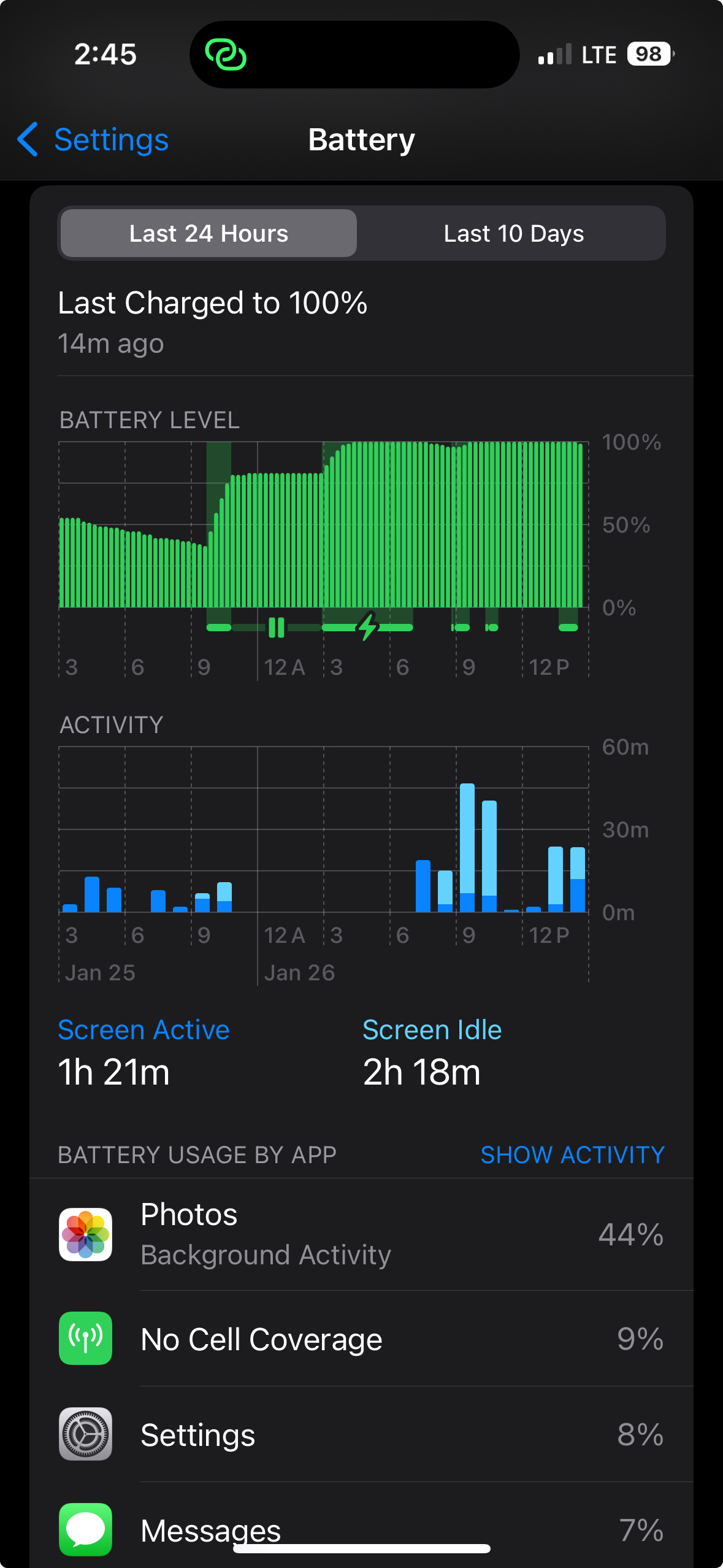
Background Activity
Notice in the above screenshot that the photos app uses power for background activity. As mentioned before, low power mode turns this background activity off for default apps like Photos, but what about other apps that have background processes?
Some apps use a lot of power with background activity. In my observation, these types of apps do this the most.
- Social Media apps
- Communication apps
- Games
Low power mode may stop background app refresh for these as well, but it is unclear how much activity it actually stops for certain types of apps, especially MMO games. If you consistently need your phone’s battery to last for extended periods of time, it may be a good idea to offload any games with a lot of such activity.
Battery Health
This is the topic that has created much controversy among users of Apple devices. According to Noor Nanji, who wrote an article for BBC on this topic, Apple had slowed down the operating systems of their iPhones in order to preserve their battery life. This caused many to believe that Apple was slowing down older devices to coerce people into buying new devices. Apple claimed that the degradation of the battery was the reason that this performance degradation was necessary.
Whatever the case, the decay of phone batteries over time is not a myth, and there are things that you can do to slow this process. First, it is a good idea to take a look at the battery health page of the settings.

It is a good idea to keep the “Optimized Battery Charging” setting turned on. This uses a learning algorithm to keep the battery level at 80% while on the charger until the time of day when you typically take the device off of the charger. This is done because it is believed that keeping the battery above 80% for long periods of time can accelerate battery aging. Also, according to Hofman, leaving the battery at a very low percentage can accelerate the battery’s aging.
One of the basic facts of the lithium-ion batteries that are used in most smartphones and laptops is that charging them causes the aging effect by which the capacity of the battery is reduced. This is why the optimized battery charging is useful to slow this aging process. Additionally, allowing a battery to discharge all of the way to 0% is not good for its health (Hofman). There are also other things that may negatively affect a battery’s health, and things that may preserve a battery’s health. Here is a summary of them with references to who provided this info.
Bad for Lithium Batteries
- Leaving a battery at 0% (Hofman)
- Keeping the battery at 100% (Apple Inc.)
- Leaving a battery in extreme temperatures (Hofman)
- Dropping the device (Meyers)
Good for Lithium Batteries
- Keeping a battery close to 80% (Apple Inc.)
- Keeping a battery above 20% (Hofman)
- If stored for several months, keeping the battery at 50% (Hofman)
It is also important to note that physical damage to batteries can be very dangerous, and device owners should never attempt to open a battery case. Ruptured lithium batteries have been known to catch fire upon contact with the air. Also, if the battery is swollen, it is definitely time to replace it (Meyers).
Conclusion
Batteries are one of the most amazing pieces of technology ever invented, and mobile devices would not exist without them. There is much more information about them, and Apple’s support site is a good place to start. When all else fails, a battery can often be replaced by a vendor such as an Apple store. This should extend the lifetime of a device by a few years. In any case, if you take good care of your device batteries, they may last longer than they otherwise would.
Sources
“About the battery and performance of iPhone 11 and later,” Apple.com, Apple Inc. 12 January, 2024, Web. https://support.apple.com/en-us/106348
“Why Lithium-ion?” Apple.com, Apple Inc. Web. https://www.apple.com/batteries/why-lithium-ion/
Hoffman, Chris. “Debunking Battery Life Myths for Mobile Phones, Tablets, and Laptops,” How-To Geek, How To Geek, 27 October 2016, Web. https://www.howtogeek.com/169669/debunking-battery-life-myths-for-mobile-phones-tablets-and-laptops/
Meyers, Mike; Hutz, Andrew. CompTIA A+ Certification All-in-One Exam Guide, Eleventh Edition (Exams 220-1101 & 220-1102) (p. 1065-1067). McGraw Hill LLC. Kindle Edition.
Nanji, Noor. “Apple battery lawsuit: Millions of iPHone users could get payouts in legal action,” BBC, BBC, 16 June 2022, Web. https://www.bbc.com/news/business-61823512
 The User's Guide To Tech